

Google’s search engine is a versatile tool that you can use for many different things. Primarily, you can use the search engine to find specific information on the web, files, websites, and much more.
But while regular Google searches can be useful to you, they can also be overwhelming and time-consuming at times. As a digital marketing specialist, you need to be able to quickly find the information you need in the digital jungle.
But with billions of websites and a dizzying amount of content, it can all feel like looking for a needle in a haystack – hopeless and life-draining!
This is where Google Search Operators come in as a lifeline to the call, wiping the sweat off your forehead with the towel you were about to throw in the ring in despair.
What are Google Search Operators?
Google Search operators are special characters and commands that you can enter into Google’s search bar to refine your search criteria. They act as advanced search tools that allow you to filter and narrow your search in different ways.
Search operators work the same way as a regular text search. The big difference is that you add some extra text that acts as shorthand for special instructions for the search.
Why use Google Search Operators?
Google’s search operators allow you to fine-tune your searches and achieve far more precise and relevant results than you would get with a regular search. In addition to refining your web searches, they save you a lot of time and make hard work easier.
But there’s more to using Google Search Operators than just being smart in a hurry. The search commands can give you valuable insights for your content marketing, business, and SEO strategy.
You can use search operators to your advantage to:
- Content research
- Finding link building opportunities
- Finding duplicate content
- Finding stolen content
- Find pages with indexing issues
- And much more
How do I use Google Search Operators?
Using Google Search Operators is almost as simple as doing a regular search. You simply enter the syntax of the selected search operator and then click search.
There are a few exceptions, however.
Remember not to put a space between the word/symbol and the search phrase. In many cases you will be able to enter the search operator just like a normal search, except in cases where “in” is included in the search operator.

Which Google Search Operators should I use?
Which Google Search Operators you should use depends entirely on what you’re looking for. There’s not one “best” operator, but rather a range of operators that you can use to enrich your search.
Search operators can be divided into two main groups:
- Basic
- Advanced
You can use the following lists as a reference for your SEO work.
Basic search operators in Google
- ”Search term” – Enclose the phrase in quotation marks to create an exact match.
- OR – To search for X or Y, e.g. apples or bananas or both.
- AND – To search for both X and Y.
- @ – Prefix a word to search on social media.
- # – Put the character in front of one to search for hashtags.
- – This search command excludes the selected word or phrase.
- .. – Place between two numbers to search between the number range.
- * – Matches any word or phrase.
- ( ) – Group multiple words or search operators to control the search.
- $ – Use this if you want to search for prices in dollars (€ euros also work).
- Define: – Shows meaning of the selected word.
- Cache: – Gives you the latest cached version of a page.
- Filetype: – To find specific file types.
- Site: – Limits results to the selected website.
- Related: – Use to find related pages for selected domain.
- Intitle: – Find pages with the selected word in the title.
- Allintitle: – Contains all selected words in the title.
- Inurl: – Find pages with selected words in the URL.
- Allinurl: – Contains all selected words in the URL.
- Intext: – Find pages with the selected word(s) in the content.
- Allintext: – To find pages with all the selected words in the content.
- AROUND(X) – To find pages that contain 2 words or phrases within x of each other.
- Weather: – Find the weather in a specific location.
- Stocks: – View stock information on a selected public company.
- Map: – Causes Google to display map results for the searched location.
- Movie: – To find info about the selected movie.
- In: – To convert one unit into another (currency, temperature, weight, etc.).
Source – To find results from a specific source in Google News.
Advanced search operators in Google
Knowing about Google’s different search operators can be very useful. But where the true power of Google Search Operators lies is in their many different combinations. You can string together almost any combination of text searches.
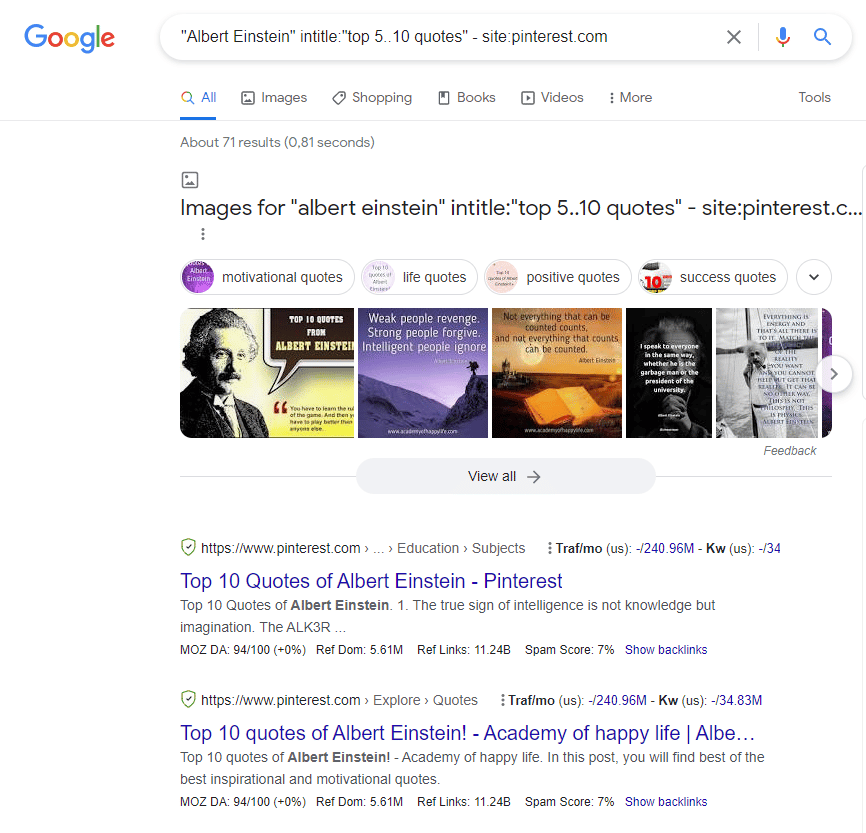
In the example below, I have searched for the top 5-10 quotes from Albert Einstein on Pinterest.
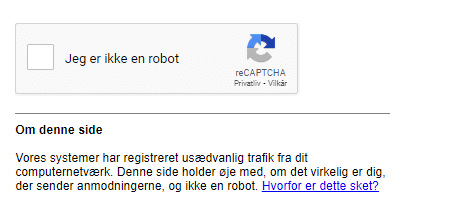
When performing advanced text searches using the search operators, you may sometimes be asked to confirm that you are not a robot. There is nothing to fear, simply confirm that you are not a robot and everything will continue as normal.
Practical use cases for Google Search Operators
Like many other tools, Google Search Operators are a useful tool if they can help us solve our problems. This assumes that we know how to use the search operators correctly, but also what tasks we can use them for.
With that said, let’s dive into how you can use Google Search Operators in your daily SEO efforts.
Technical SEO
- Find duplicate or plagiarized content
- Investigate the transition from HTTP to HTTPS
- Find internal link building opportunities
- Investigate indexing issues
- Find redundant and old files
- Check the last Google crawl of your URL
Linkbuilding
- Find guest post opportunities
- Find forum link options
- Find resource pages
- Find PR opportunities
Content and research
- Find direct competitors
- Find studies, research, statistics, etc.
- See all pages for an author
More about Technical SEO
Technical SEO refers to the aspects of search engine optimization that are related to the technical aspects of a website. Without a well-functioning technical foundation, your website cannot rank high – in the worst case, not even be indexed. In addition, technical problems can also ruin the user experience for visitors.
Fortunately, you can use Google search operators to make your work with technical SEO easier.
Find duplicate or plagiarized content with Google Search Operators
As you already know, search engines like Google use algorithms to rank websites. An important factor in these algorithms is the originality of the content. Therefore, websites with duplicate/plagiarized content are penalized with lower rankings in search results.
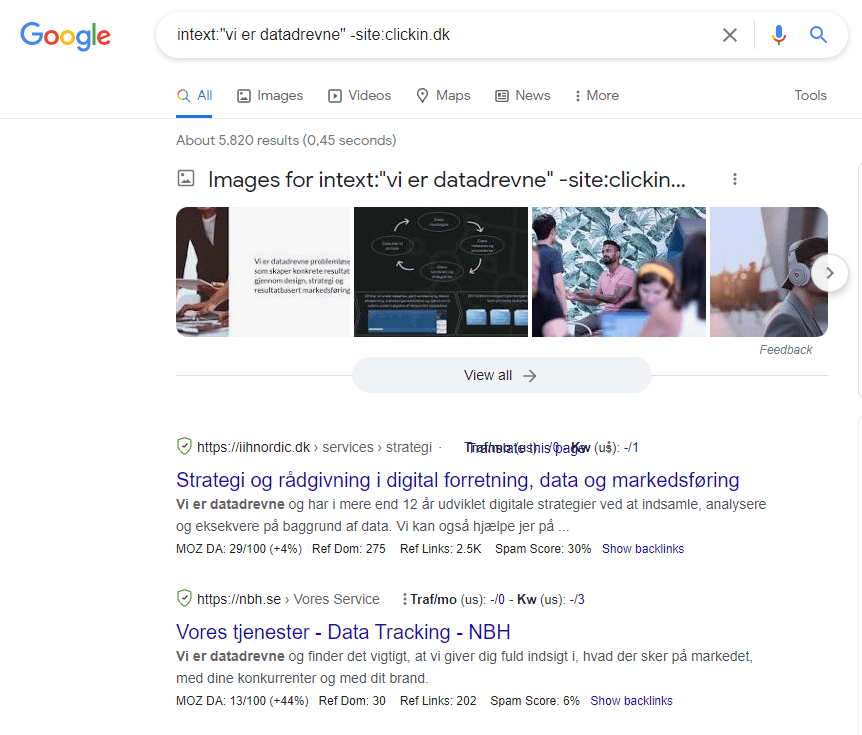
It’s not always easy to spot duplicate and certainly not plagiarized content, especially when you’re dealing with a large universe of content. Fortunately, you can use a combination of search operators like “intext” and “site” to find plagiarized content. Alternatively, you can also use “intitle”.
In the example below, we have chosen a very generic phrase, but we recommend that you choose a unique phrase or piece of text from your website, brand, etc.
Duplicate content
With a slight modification, you can also use the same search operator to find duplicate content on your website. In the example below, we can see that the selected phrase appears in several places. In this case, it would make sense to investigate the extent of the duplication and the reasons behind it.
It may make sense to examine elements such as:
- Product descriptions
- Research and cases used on multiple pages
- The CTA section at the bottom of the page

Investigate the transition from HTTP to HTTPS
Despite its widespread use, HTTP has some serious security flaws, which have led to the development of a more secure successor protocol, HTTPS. By using HTTPS, you tell both visitors and Google that your website is safe to visit.
>> Today, HTTPS is a confirmed ranking factor in Google’s algorithm <<
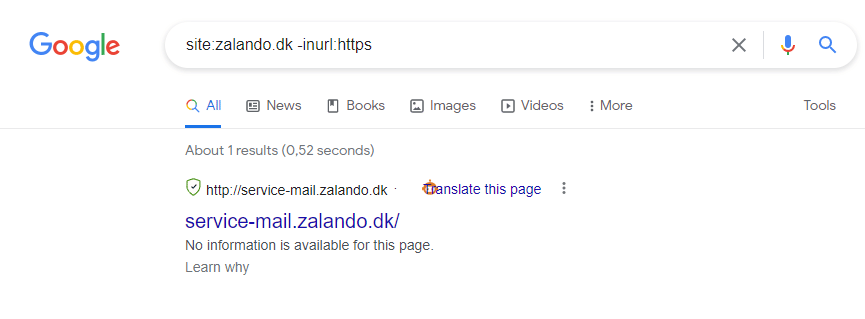
In the example below, we can see that Zalando has a website that still uses HTTP rather than HTTPS.
Find internal link building opportunities
Internal links on your website are an important part of any website’s information and navigation structure. They help both visitors and Google’s crawler navigate around your website. Internal links also help Google understand the hierarchical structure of your website content.
When it comes to internal link building, it is important that you choose a relevant keyword as the anchor text for the page that you want to rank for the keyword.
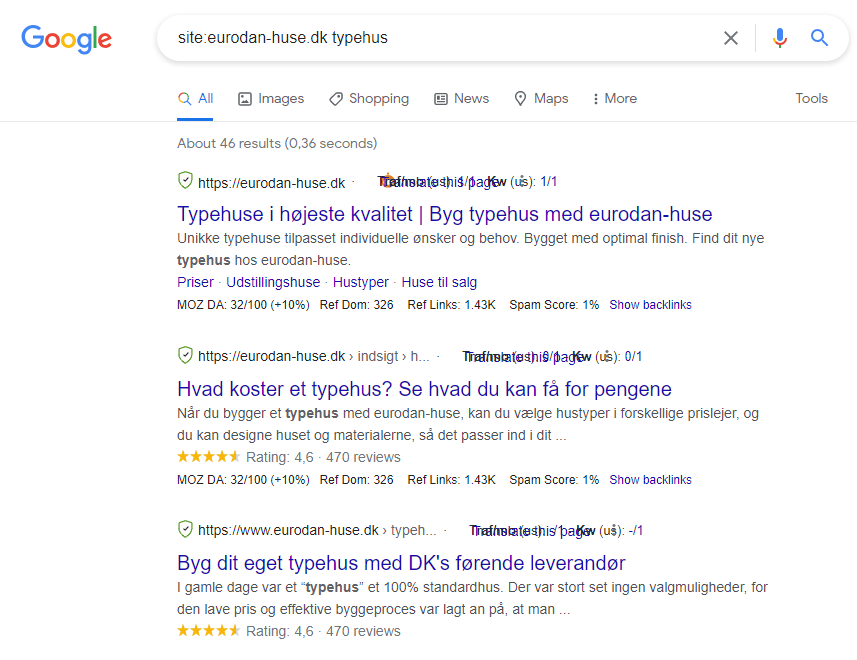
In the example above, we have chosen to investigate the internal link options for ‘type house’ at Eurodan Huse. Google will here show search results for pages where ‘type house’ is included in the text. Notice that the search term is highlighted in the SERPS.
Investigate indexing issues
Indexing content is crucial if you want to be found in Google and thus by the public. Google is not always good at indexing content, which can be for many reasons.
Therefore, it is important that you regularly check whether your content has been indexed. Fortunately, you can quickly do this by doing a “site:” search of your page’s URL.
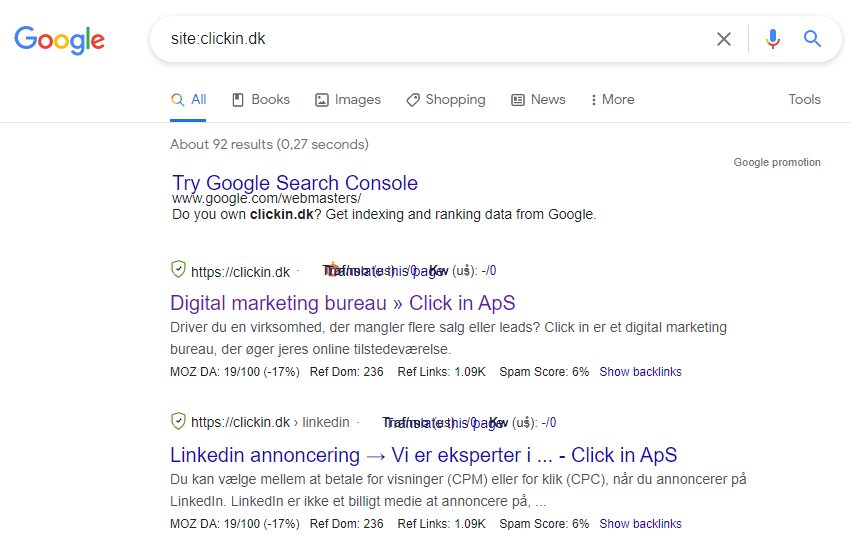
If the selected web page was not indexed, it would not appear in the SERPS. If your page is not indexed, we recommend that you actively work with your crawl budget if you want to increase your success rate with Google indexing.
Find redundant and old files
As your content universe grows and changes, it’s important to continually review your website for correct and relevant content. Outdated content in the form of outdated PDF files, PowerPoint presentations, etc. can contribute to a poor user experience for visitors.
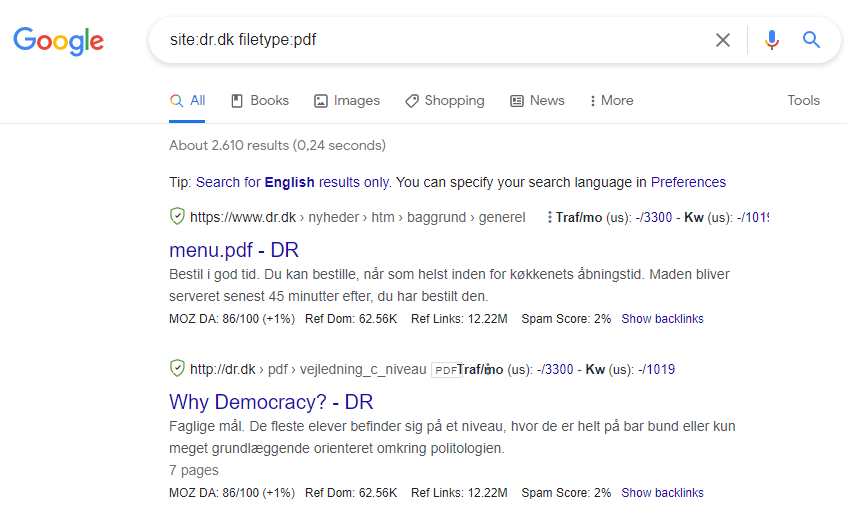
By performing a site file type search, you can quickly find outdated files. In the screenshot above, we have chosen to use DR as an example.
Check the last Google crawl of your URL
If you have one or more landing pages that are being revised regularly, it might be a good idea to check them regularly to see when they were last crawled. Google is not always quick to review all web content, which is why you can sometimes find, for example, old meta data in SERPS and the like.
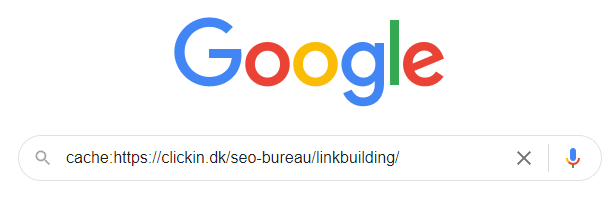
When you execute the search, you will be redirected to the page you have chosen to investigate. At the top, you will see information about when Google last crawled it.
If the cached version of your new content is missing, we recommend that you go to Google Search Console and request indexing. Alternatively, you can also use instant indexing via Google API (Google Colab, Rank Math instant indexing, etc.).

Linkbuilding
One of the most important aspects of search engine optimization is link building. An external link from another domain acts as a signal to Google that your website is relevant and has importance (authority).
Unfortunately, links often don’t come by themselves, which is why it’s important to have both strategies and plans for how you acquire links to your website. At the time of writing, there are many different link building options available, from guest posts on blogs, forum links, PBNs, memes, infographics, etc.
Find guest post opportunities
Creating a guest post or several can be a useful strategy for acquiring relevant, quality links to your site. However, it is not easy to find relevant opportunities. By doing a category search using “intitle” and “inurl“, you can quickly find relevant opportunities.
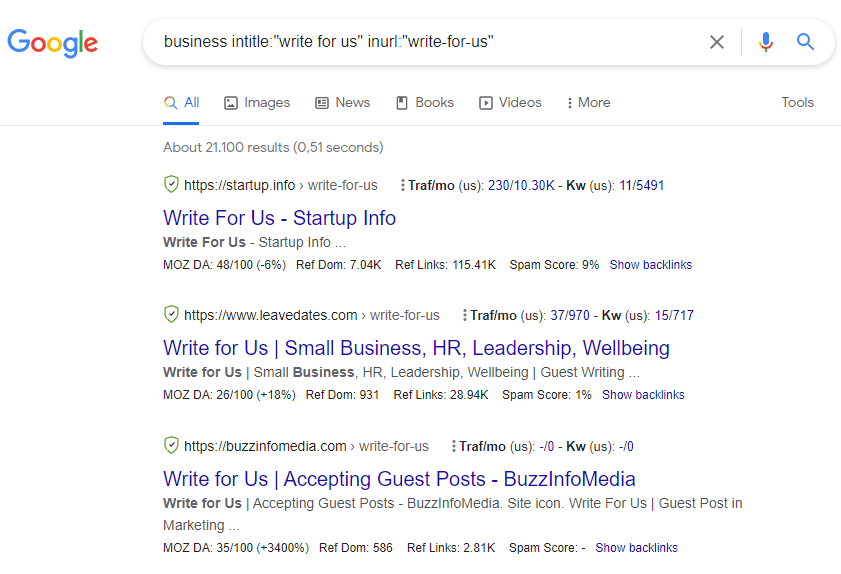
You can also use the same searches to find potential opportunities for your cold canvassing strategy.
Find forum link options
When it comes to link building, forums can be a valuable resource. They can help give you a more diverse link profile. However, it is important that you choose relevant forums, make natural posts, and don’t spam.
That being said – this is how you behave:
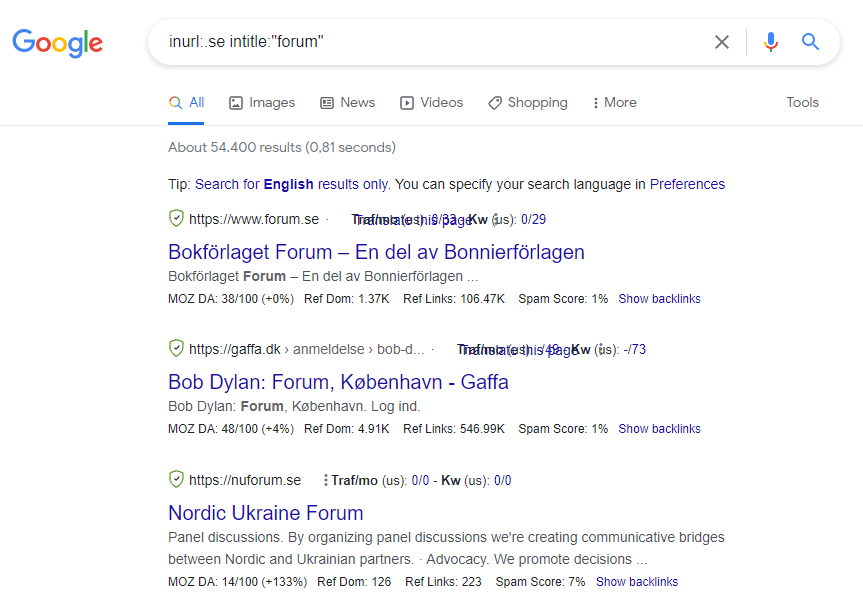
Forum links can be a very useful source of links, especially when it comes to international link building, where options can be limited and at high prices.
Find resource page opportunities for your link building strategy
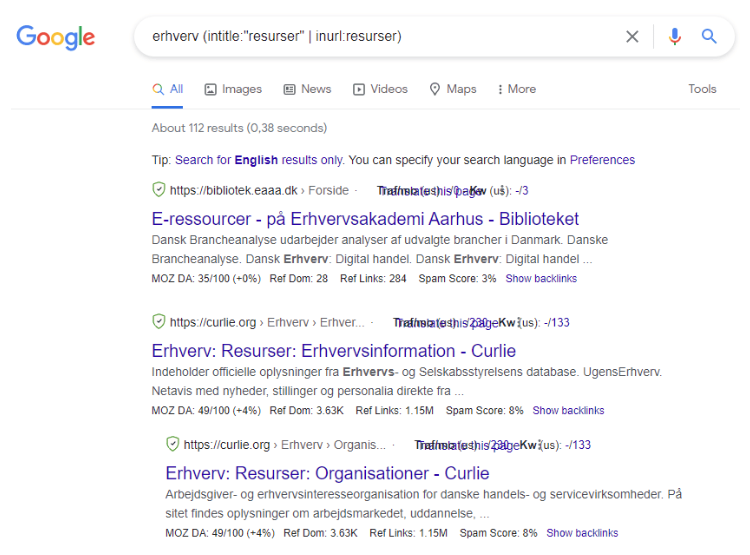
Resource pages can also be a good source of potential link opportunities. In the past, these pages were used to give out links to others, but today they are also used as a “link magnet”.
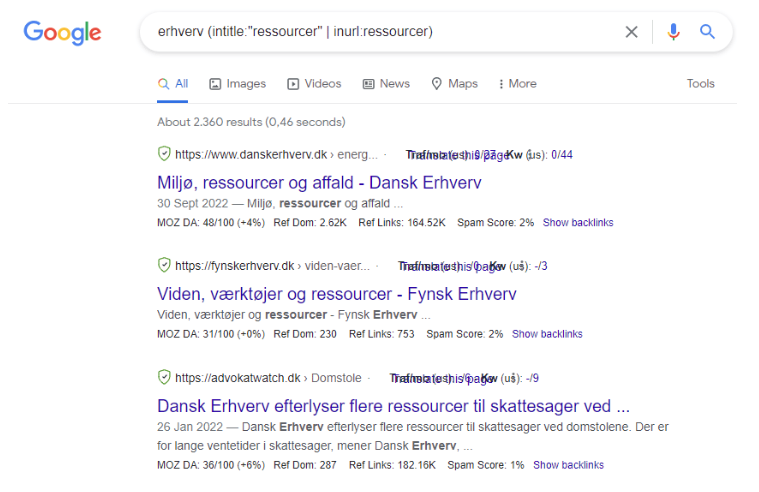
By creating a resource page full of good quality information, you may be lucky enough to attract links from other websites.
Be careful when choosing search terms (resource page / resource page)
Find potential PR opportunities
If you run a business in a niche with good coverage, you can easily find blogs and media sites where you might be lucky enough to be allowed to squeeze a link in. This works best for sites where your brand name is included, for example a product comparison and/or review site.
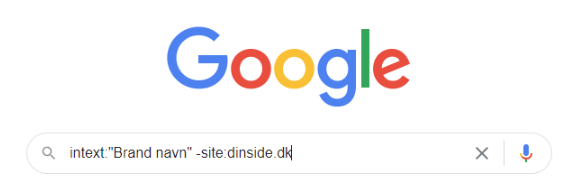
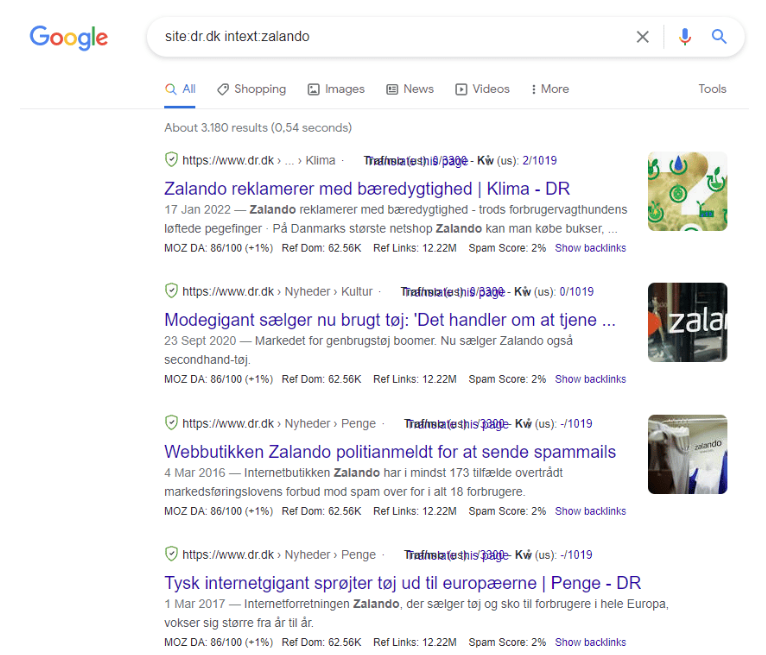
Once you have found a handful of domains that include your brand, you can do a site search with your brand intext. This gives you an overview of how many places your brand is mentioned on that domain. Which equals potential link opportunities.
Content and Research
Anyone who wants to improve their rankings in search engine results pages should focus on both content and research. Google is text-based, which is why good content is the foundation of any SEO strategy. Textual content tells Google what your website is about and ranks for relevant keywords.
Content and research work can be very extensive, but fortunately you can use Google Search Operators to make your work a little easier.
Find direct competitors
Having insight into the level of competition for your chosen search terms is crucial to how your website will perform in the future. And how much work and money you will put into it.
By using the search operator “allintitle:” you can find competitors for your keywords.
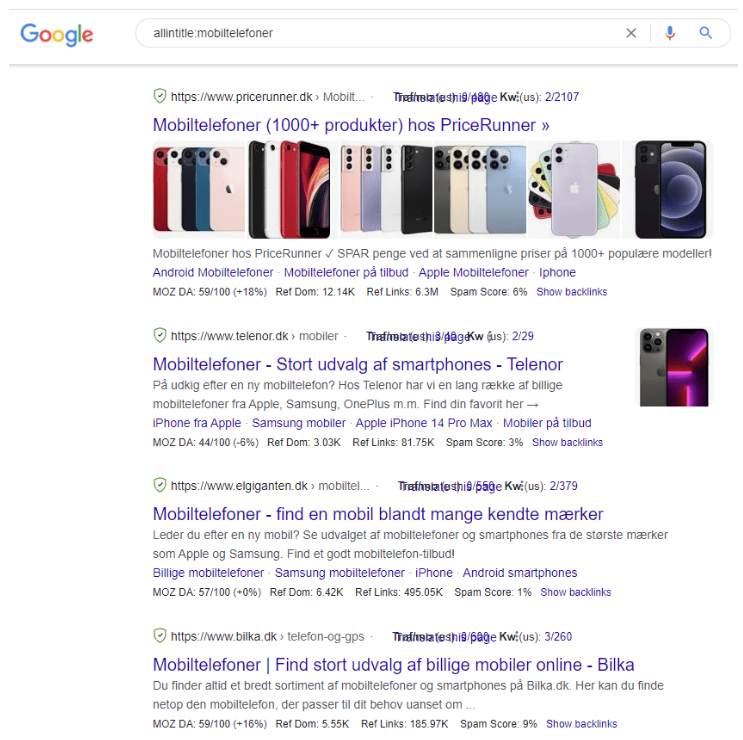
You can also use the “inurl” search operator to find competitor websites, etc.
Find studies, research, statistics, etc.
Any good content marketing strategy should be based on research and data. Without this foundation, it can be difficult to produce content that engages your audience and meets your business goals.
Statistics, research and surveys can help to:
- Prove claims
- Supporting arguments
- Building trust
- Create authority
- Help convert
Additionally, statistics and research can help you understand your target audience’s needs and interests, identify trends in your industry, and develop targeted content. If you want to get the most out of your content marketing and copywriting, make sure to invest in quality research and data.
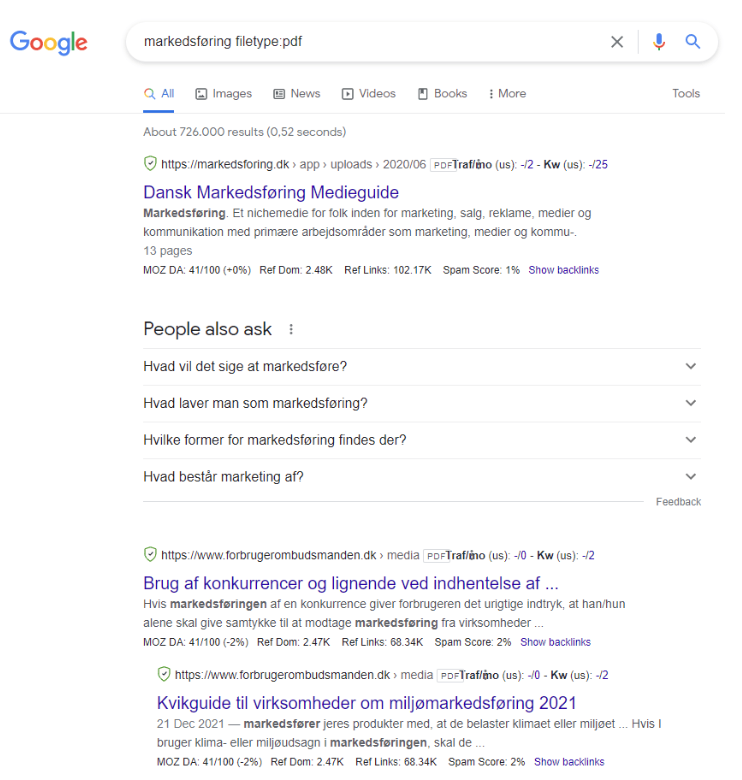
The vast majority of research, studies, etc. are available in PDF format. By using a “filetype:” search, you can quickly find relevant studies for your content marketing strategy and content production.
See all pages for an author
If you know of an active writer in your niche, you can use a search operator combination to find websites where they have written. This can give you an idea of what topics are popular with your audience and your communicators.
In addition, it also gives you an overview of which potential pages you can visit and contribute content to.
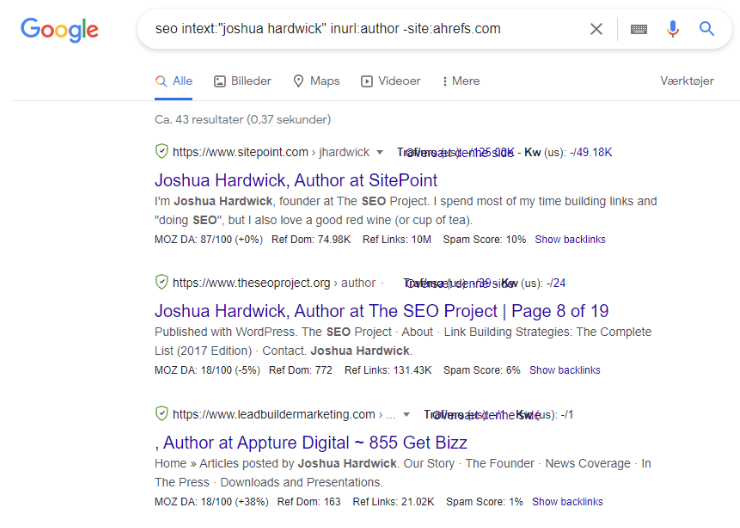
In the example above, we have chosen to investigate Joshua Hardwick from Ahrefs in relation to which other pages he has written content for.
Google Images advanced searches
In addition to search operators for text searches, Google also has a few search commands for image searches. You can quickly access Google Images directly or by doing a text search first.
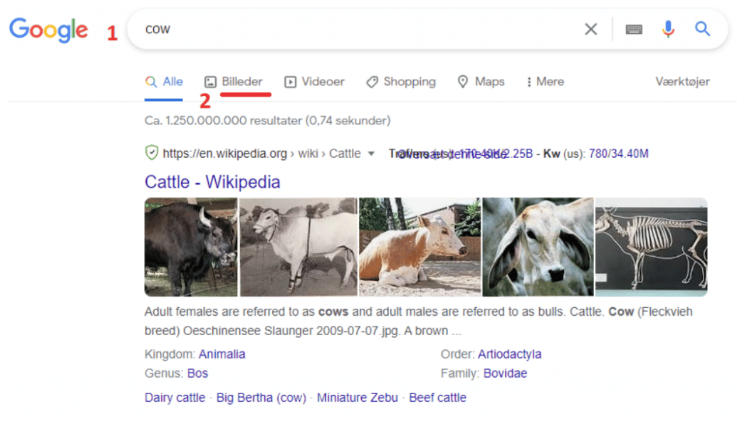
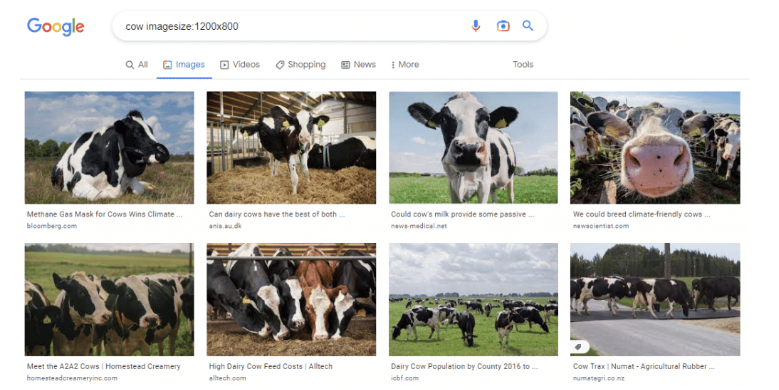
In the example below, I first search for “Cow”, then click on the “images” menu item.
Inside Google Images, you can currently use the following 2 search commands:
- Imagesize: – To find pages that contain images with specific dimensions.
- Src: – To find pages (any domain) that reference the specific image URL.
Continuing with the cow example from earlier, I enter the search term before the search command. Using the ‘imagesize’ command, you can quickly find indexed images in the desired sizes.
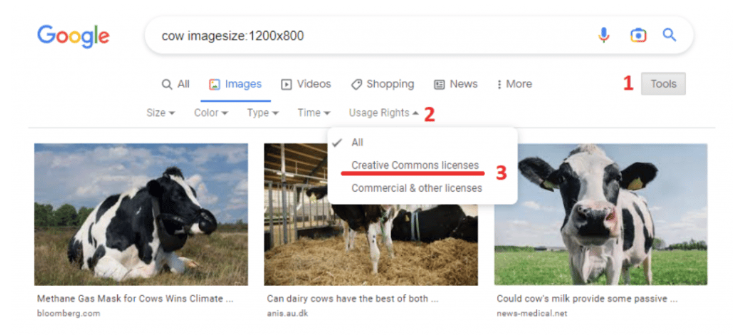
*Bonus tip*: If you need to find images for commercial use, you can click on ‘Tools’ then ‘Usage Rights’ and then select ‘Creative Commons licenses’. This will show you royalty-free image search results (images without copyright).
The src search operator can be useful to use if you want to find out if you have images on your website that are hotlinked. This can be displaying an image on your website by linking to the website that hosts it.
Advanced image searches
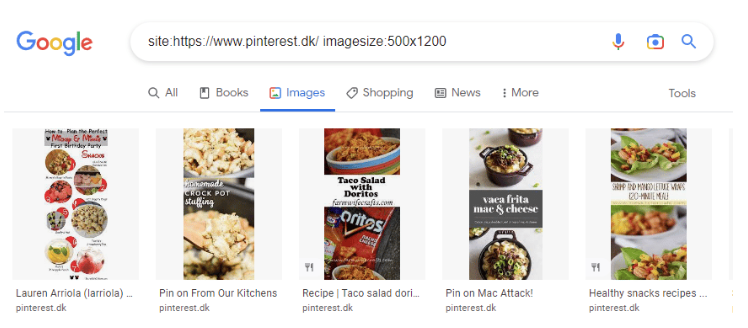
Just like with text searches, you can use search operators in conjunction with each other with image searches. For example, if you want to find images with specific dimensions on a website, you can do an imagesize search in conjunction with a regular site search. You can also use the same syntax for src searches.
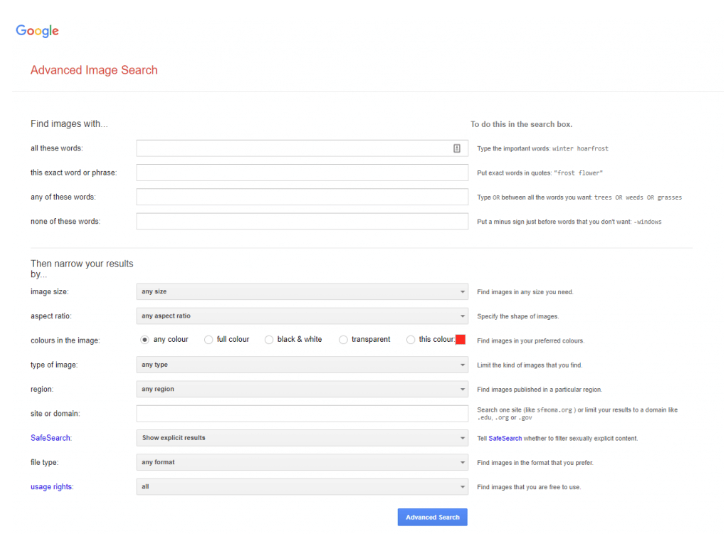
If you want to perform more advanced searches, you can use Google’s Advanced Image Search tool. You can use the tool’s various filters and functions to narrow down your search results.
For example, you can use the tool to find images that have a specific color or from a specific geographical area.
Save time and target your efforts with Google search operators
Google search operators can help you make your SEO work and rtesearch more effective. By using the different Google Search Operators, you can save time and make your efforts more targeted.
In this article, we have shown you 28 search operators with different practical combinations that you can use in your SEO work. If you are curious, you can also experiment with creating your own search operator combinations for your searches.
We recommend that you use this article as a reference that you can always refer to if you have any doubts about using search operators.